
Timesheets
How a timesheet is made, checked, approved and used for pay and invoices.
Last updated 3 November 2026
How a timesheet starts
- A staff member presses Start shift when they arrive and End shift when they leave, with a sign-off from their supervisor or the participant.
- They then send it with Submit timesheet, and it waits under Pending approval.
- If someone could not clock on, add it yourself with + Add timesheet.
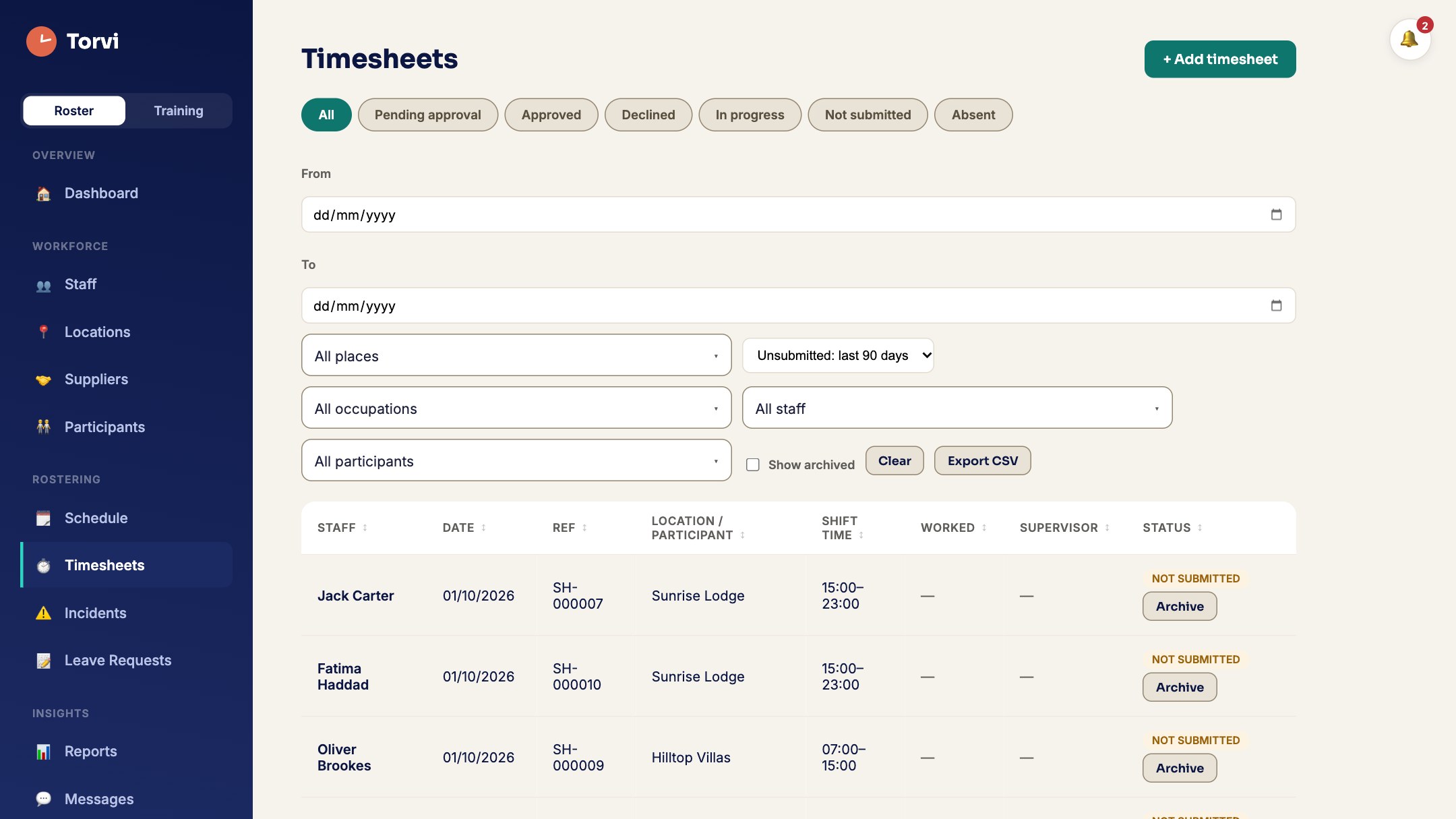
Check and approve
- Open a timesheet from the list. Correct the times with Adjust times (a reason is kept in its history), and add or remove breaks.
- Press Approve, or Decline with a reason the staff member will see.
- To approve many at once, switch to By staff, tick people and press Approve pending.
- An approved timesheet can be sent back with Reopen.
What happens next
- Only approved timesheets are counted for pay runs and invoices.
- Choose the period with the period selector — Weekly (Mon–Sun), Fortnightly, Monthly and more — and Export CSV when you need a file.