The staff app
Sign in, see your shifts, start and end them, timesheets, leave and documents.
Last updated 3 November 2026
Sign in
- Open the Torvi app (or torvi.com.au) and enter your email and password, then Sign in. Forgot it? Choose Forgot your password?.
Your shifts
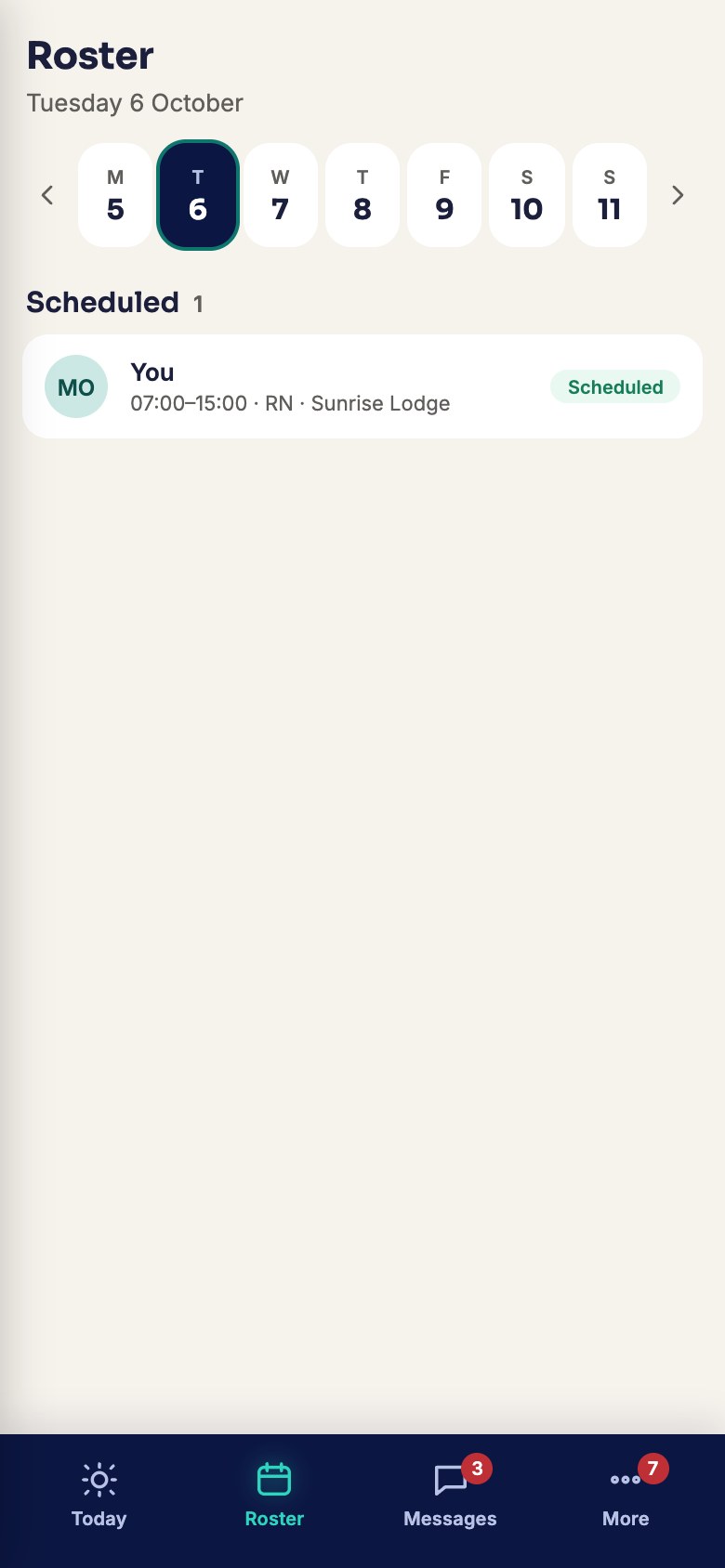
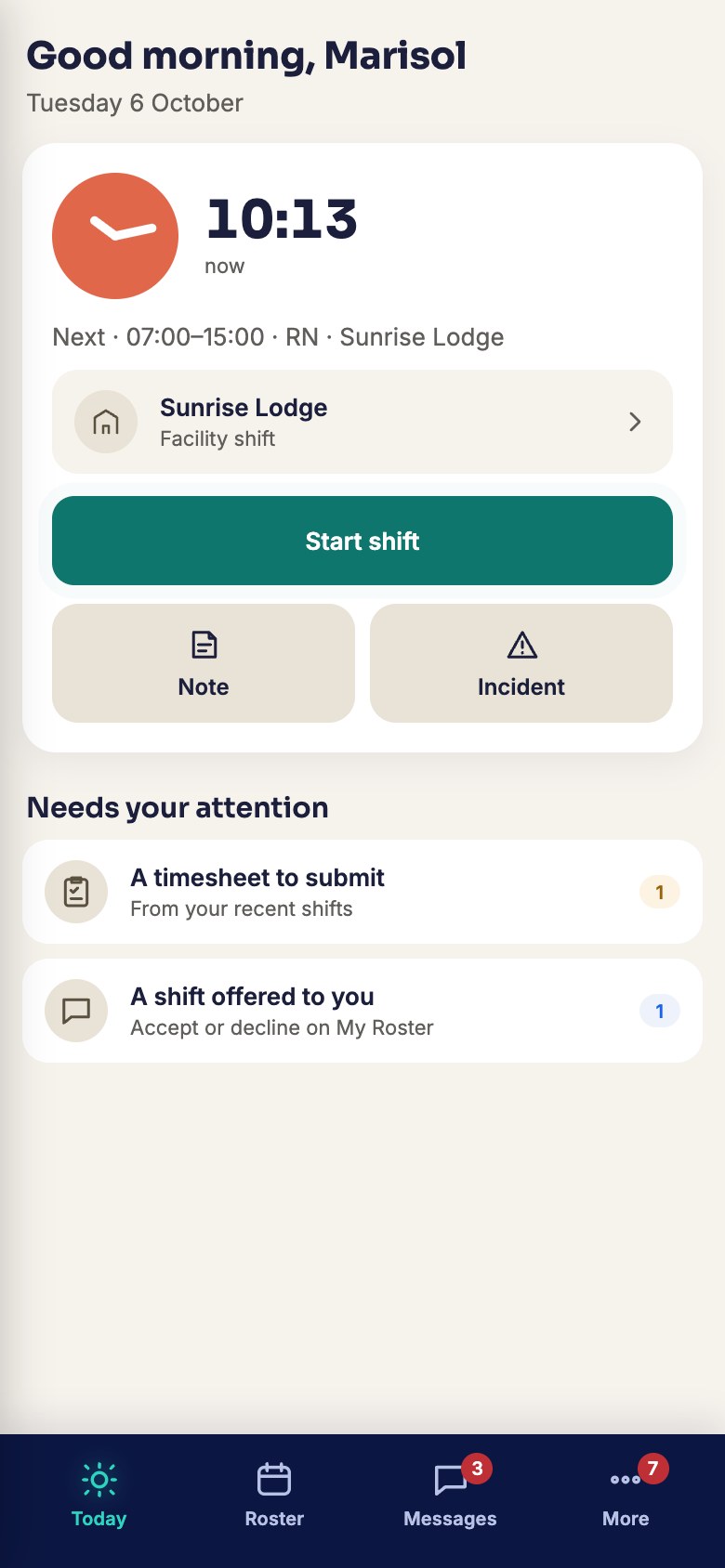
- Today shows your next shift and anything that needs you. Roster shows the rest.
- Answer offers with Accept or Decline. Take open shifts with Claim, or Request this shift when your roster clerk chooses.
Start and end a shift
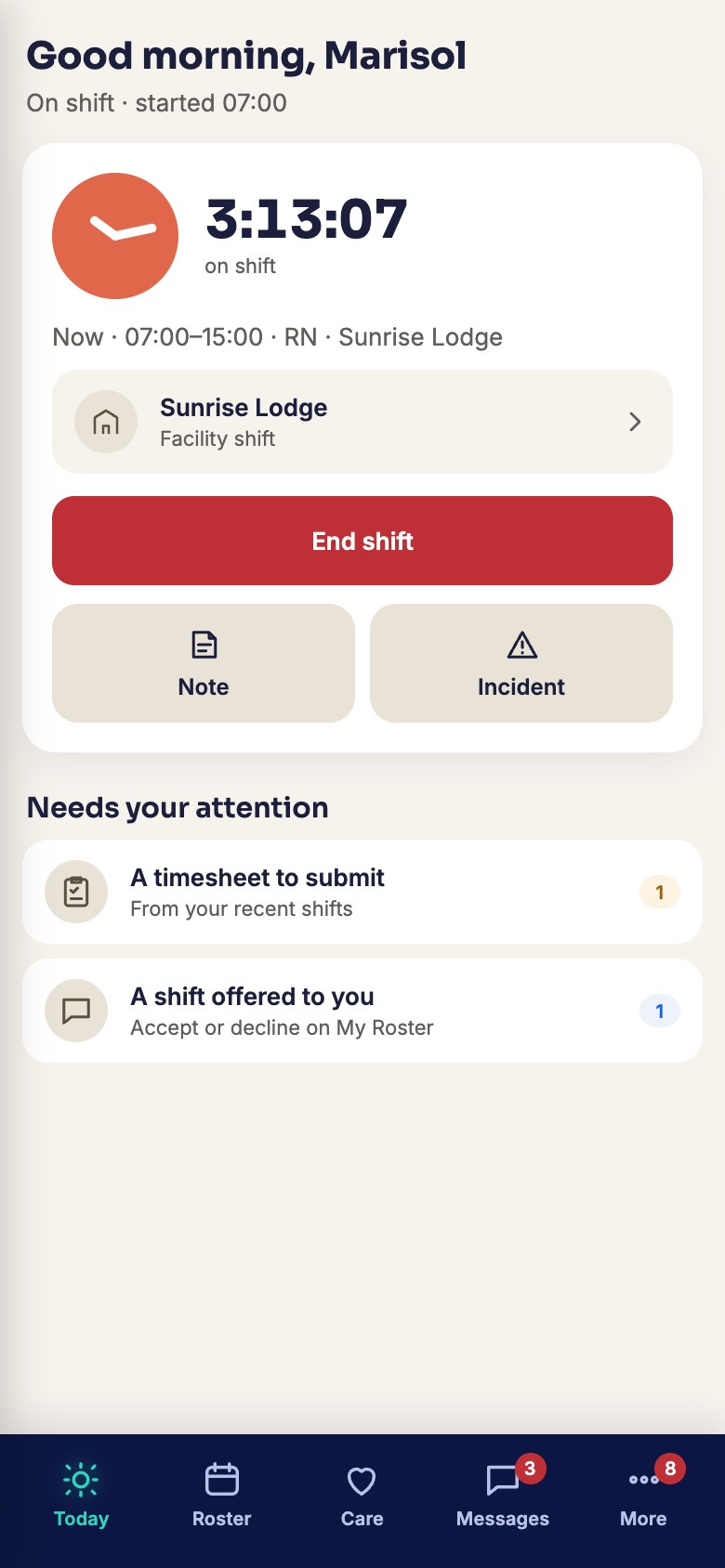
- Press Start shift when you arrive (from half an hour before). If your workplace uses location checks, you need to be on site.
- Press End shift when you leave. Your supervisor or the participant signs, or tick Nobody able to sign and say why.
- Then Submit timesheet. If it comes back declined, fix it and send it again.
Leave and availability
- Open Availability & Leave. Set your Weekly availability and Save availability.
- Under Request leave, choose the dates and type, then Submit request. You are told when it is answered.
Your documents
- Open My documents to sign contracts (Review and sign), see what you need on file, and Add document — with its expiry date if it has one.