
Roster & shifts
Create shifts, publish them, and fill them by assigning, offering, claiming or requests.
Last updated 3 November 2026
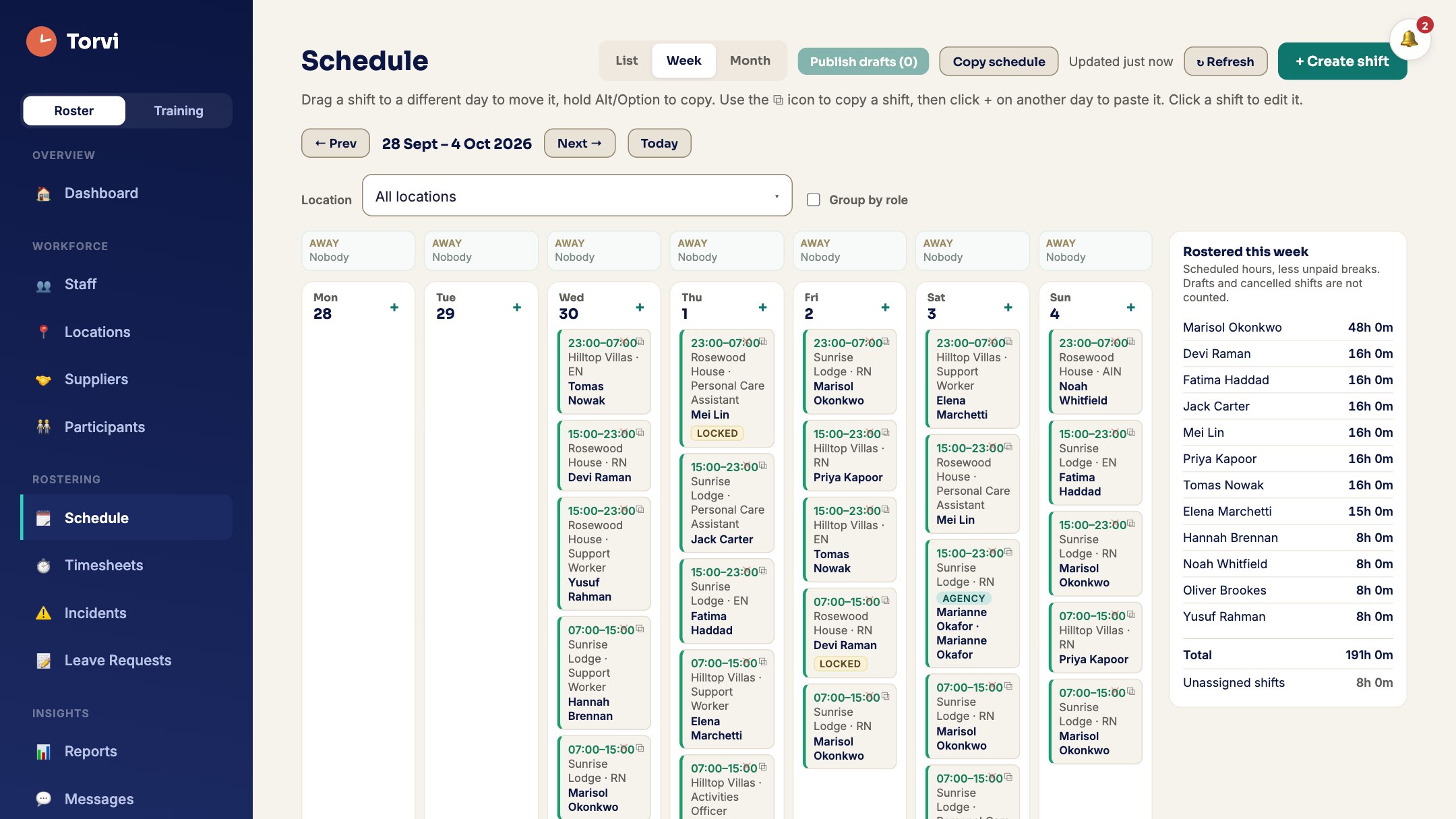
Create a shift
- On Schedule, choose + Create shift.
- Pick the Location (or a participant), the date, the Occupation needed and the times.
- Add planned breaks with Add break: a Meal Break (unpaid) comes off the paid hours, a Rest Break (paid) does not.
- Choose Who gets this shift (below), then Create shift.
Who gets this shift
- Assign to someone puts a person straight on it.
- Offer to someone — they accept or decline sends them an offer.
- Open — first to claim gets it lets anyone with the right occupation and location claim it.
- Open to requests — staff ask, you choose lets staff ask for it, and you pick one.
- Not yet — it stays in your Unfilled list keeps it to yourself for now.
Drafts and publishing
- New shifts are drafts unless you tick Visible to staff now.
- Press Publish drafts to publish them all at once. Staff who can take an open shift are told.
- Use Copy schedule to copy a week into the next as drafts.
Open to requests
- Staff see Request this shift on My Roster and can Withdraw until you decide.
- The shift shows how many people asked. Open it and choose Give it to the person you want.
- They are told the shift is theirs, and everyone else who asked is told it has gone.
Offers
- On a saved, unfilled shift choose Offer to staff…, tick people and Send offer.
- The first person to accept gets it; the others are told it has gone. An offer expires if nobody answers.
Changing or removing a shift
- Open the shift to edit it. Whoever is on it is told what changed — the day, the time, the site, the occupation, the break or the notes.
- Remove a shift with Delete shift. The person on it is told not to attend.
- A shift that has started with nobody clocked on shows Running late.