
Getting started
Sign up, then set up locations, rates and staff, and publish your first roster.
Last updated 3 November 2026
Sign up
- Go to torvi.com.au and choose Start your free trial.
- Choose A team or facility, or the sole trader option if you work shifts yourself.
- Enter your business name, ABN, your name and your work email. You become the first administrator.
- Choose your plan, accept the terms and press Start my free trial. No card is needed to start.
- Press Set my password, or use the link in the welcome email, then sign in.
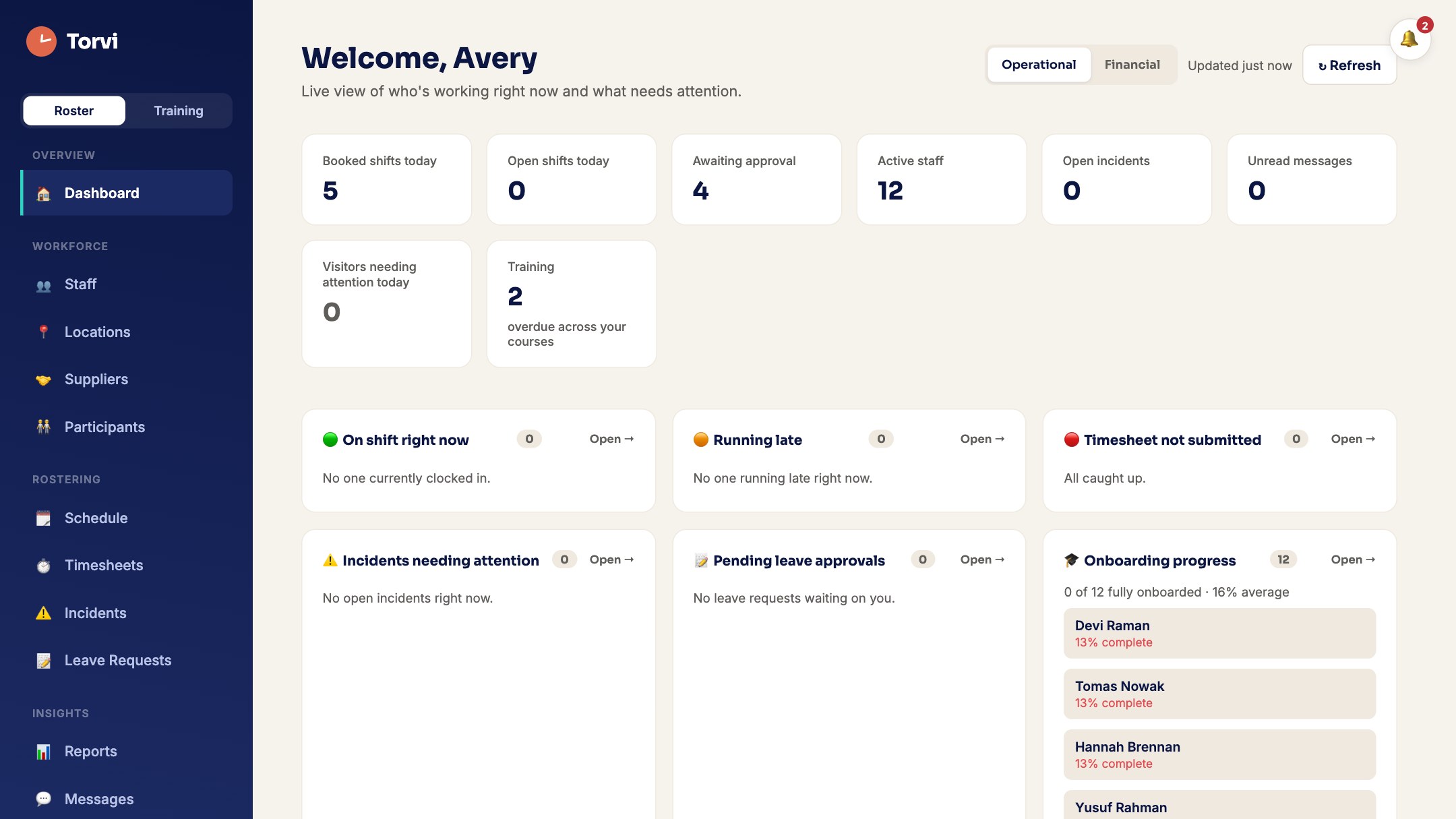
Your setup guide
- The Dashboard shows Getting started with the steps below, how many are done, and the next one picked out. Each step ticks itself when the thing exists, so you never tick anything by hand.
- Press Do it now to go straight to the place that does a step, or Show me how to read how here.
- You only see steps for the products you have. An administrator can Dismiss the guide for everyone, and open it again with the link below.
In the app: press Done, then open More › About & help › Open the setup guide.
Add your locations
- Open Locations and choose + Add location.
- Give it a name (and an address if you want staff to clock on there), then Save location.
Add occupations and pay rates
- Common occupations are there already. Add more in Settings, under Occupations.
- Open Finance, then Awards & pay rates, to set what each occupation is paid.
Invite your staff
- Open Staff and choose + Add staff.
- Enter their name and email and choose their access, then create the invite link. It lasts seven days.
Build and publish your roster
- Open Schedule and choose + Create shift. Shifts save as drafts while you build.
- When the week is ready, press Publish drafts to show it to your staff.
Approve timesheets and set up invoicing
- Timesheets come in as people finish their shifts. Approve them under Pending approval on Timesheets.
- In Finance, set billing rates under Invoice rates & settings, then create invoices from approved timesheets under Invoice runs.